Automate TLS certificate management with vCert
This guide demonstrates using the vCert playbook feature to automate certificate request, installation, and renewal with Next-Gen Trust Security (NGTS). At the end of this walkthrough, you will:
- Configure a vCert playbook that authenticates to NGTS with a service account
- Enroll a certificate for the first time
- Configure an after-installation command to restart an application
- Configure renewal settings
This is an entry-level guide. Prerequisite skills include using the command line and editing YAML configuration files.
Before you begin
- Access to Next-Gen Trust Security on Strata Cloud Manager, and a registered service account with permission to manage certificates. See the Palo Alto Networks service account documentation. Note the service account's Client ID, Client Secret, Token URL, and Scope (
tsg_id:<TSG_ID>). - A Certificate Issuing Template configured for your tenant, and its API alias (used as the playbook
zone). - A Linux client where a basic NGINX web server can be installed (this guide uses Ubuntu 22.04). vCert is also available for Windows and macOS, but steps will vary.
How it works
- Prepare NGINX — install and configure the web server.
- Configure vCert — download vCert and create a playbook that connects to NGTS.
- Run the playbook — enroll and install the certificate, and optionally schedule daily runs.
Step 1: Prepare the NGINX web server
-
Open or log into your Ubuntu Linux server.
-
If you have not already, install NGINX:
sudo apt update
sudo apt install nginx
Confirm it's serving on port 80 with a browser pointed at the server's IP, or
curl http://localhost. -
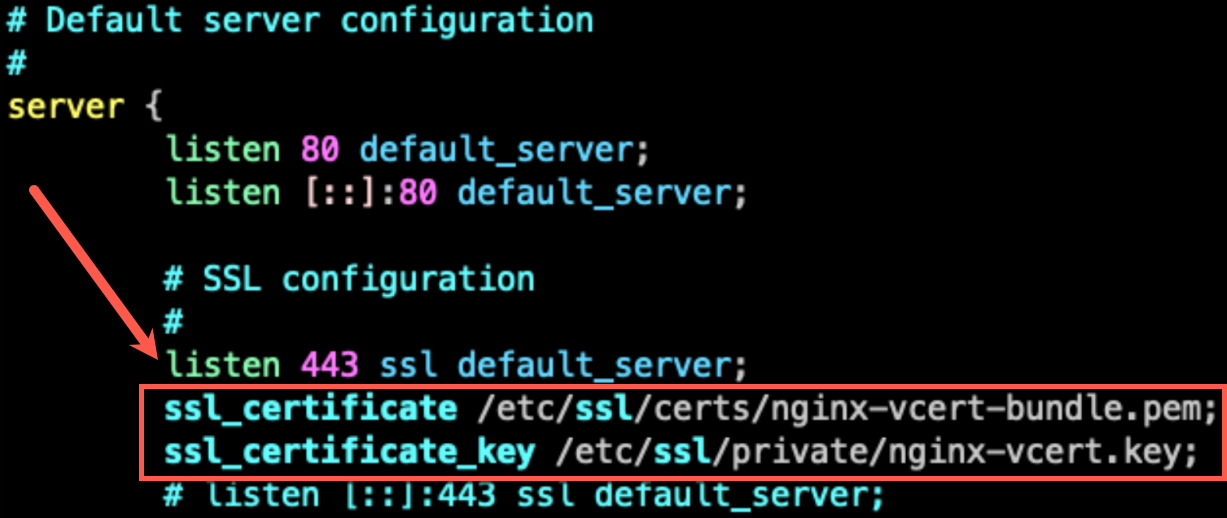
Edit
/etc/nginx/sites-enabled/default:sudo vim /etc/nginx/sites-enabled/default- Uncomment the line that reads
listen 443 ssl default_server. - Add the following lines immediately below it:
ssl_certificate /etc/ssl/certs/nginx-vcert-bundle.pem;
ssl_certificate_key /etc/ssl/private/nginx-vcert.key; - Uncomment the line that reads
-
Save and close the file.
Your edited configuration should look similar to this:
Do not restart NGINX yet. vCert restarts it after obtaining a certificate.
Step 2: Configure vCert
-
Download vCert for Linux from github.com/venafi/vcert/releases. For example:
wget https://github.com/Venafi/vcert/releases/download/v5.3.0/vcert_v5.3.0_linux.zip -
Extract the archive and copy the
vcertbinary to/usr/local/bin(or another directory in your PATH):unzip <vcert-file> -
Create a playbook file at
~/playbook.yaml. This playbook authenticates to NGTS with service-account client credentials and requests a certificate from your issuing template:config:
connection:
platform: NGTS
# url is optional; defaults to https://api.strata.paloaltonetworks.com/ngts/
url: '{{ Env "NGTS_URL" }}'
credentials:
clientId: '{{ Env "NGTS_CLIENT_ID" }}'
clientSecret: '{{ Env "NGTS_CLIENT_SECRET" }}'
scope: '{{ Env "NGTS_SCOPE" }}' # tsg_id:<TSG_ID>
tokenURL: '{{ Env "NGTS_TOKEN_URL" }}'
certificateTasks:
- name: myCertificate
renewBefore: 10%
request:
csr: local
subject:
commonName: '{{ Hostname | ToLower }}'
zone: "{ISSUING_TEMPLATE}"
installations:
- format: PEM
afterInstallAction: "cat /etc/ssl/certs/cert.pem /etc/ssl/certs/nginx-vcert-chain.pem > /etc/ssl/certs/nginx-vcert-bundle.pem && systemctl restart nginx"
file: /etc/ssl/certs/cert.pem
chainFile: /etc/ssl/certs/nginx-vcert-chain.pem
keyFile: ../private/nginx-vcert.keynoteNGTS credentials can be supplied as either an
accessTokenor the four client-credential fields shown above (clientId,clientSecret,scope,tokenURL) — but not both. NGTS does not support refresh tokens; vCert obtains a fresh token from the client credentials as needed. Set the referenced environment variables (NGTS_URL,NGTS_CLIENT_ID,NGTS_CLIENT_SECRET,NGTS_SCOPE,NGTS_TOKEN_URL) before running, or replace the templating with literal values. -
Set
zoneto your Certificate Issuing Template's API alias, then save the file.
Step 3: Run the vCert playbook
-
Run the playbook:
sudo -E vcert run -f ~/playbook.yamlBecause the certificate does not yet exist, this first run requests and installs a new certificate. Subsequent runs examine the installed certificate and renew it based on the
renewBeforevalue.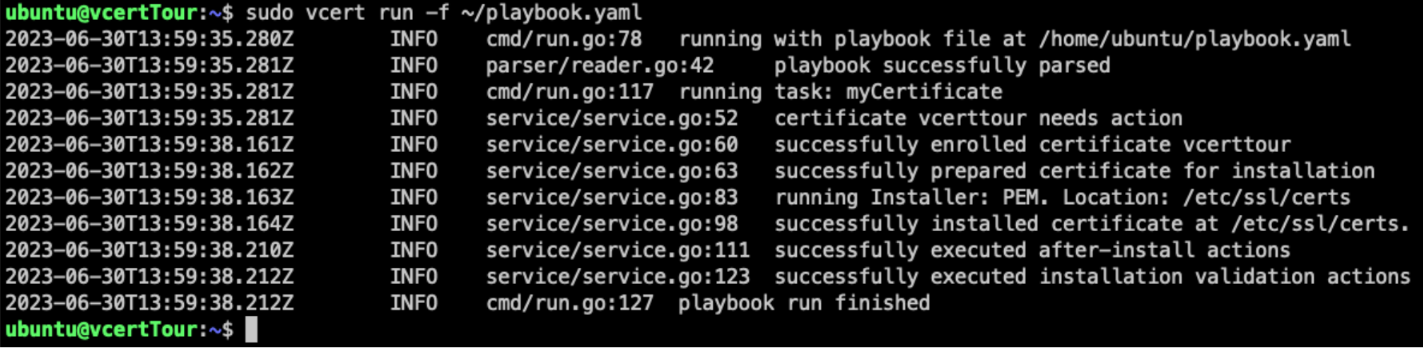
-
Run it again. Because the certificate is not yet within the renewal window, no action is taken.

-
(Optional) Adjust
renewBeforeto test renewal. Setting it higher than the certificate's validity period forces a renewal on the next run. -
(Optional) Configure a cron job to run daily:
crontab -eAdd:
0 23 * * * /usr/bin/sudo -E /usr/local/bin/vcert run -f ~/playbook.yaml >> /var/log/vcert-user.log 2>&1
You have now set up automated certificate management with NGTS and vCert.