Integrating with PowerShell
Overview
You can sign PowerShell scripts using the standard Set-AuthenticodeSignature cmdlet. This integration method works with the Code Sign Client, which makes your code signing certificates available directly in the native Windows Certificate Store.
This guide shows you how to find the correct certificate provided by the Code Sign Client and use it to sign your PowerShell scripts.
Before you begin
Before proceeding, ensure you have the following:
- A PowerShell script file — a script file (for example,
hello.ps1) that you will be signing. - The Code Sign Client — installed and running on a Windows machine.
How do I get started?
The process involves two main steps, with an optional third step for handling certificate trust:
- Find your signing certificate — locate the code signing certificate in the Windows Certificate Store using PowerShell.
- Sign your PowerShell script — use the
Set-AuthenticodeSignaturecmdlet with the certificate you found. - Handle certificate chain trust — ensure the certificate's trust chain is properly installed to avoid warnings.
Step 1: Find your signing certificate
First, get a reference to the code signing certificate you want to use. You can list all available code signing certificates in the current user's store with the following command:
dir Cert:\CurrentUser\My\ -CodeSigningCert
To select a specific certificate, filter the results by its subject name. The result is stored in a variable for use in the next step.
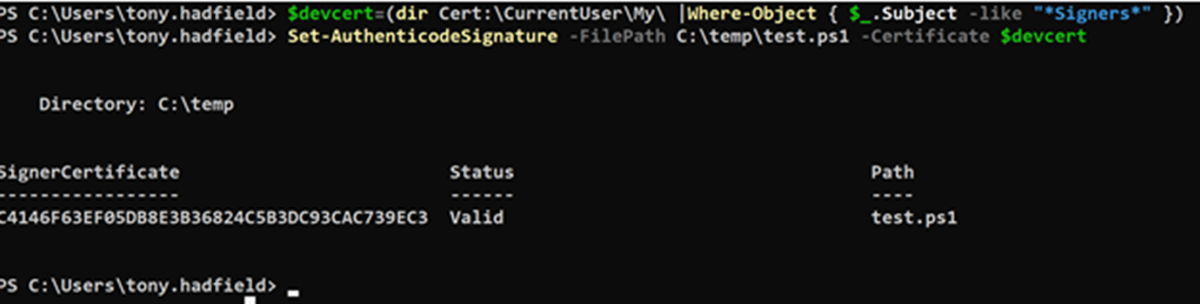
$devcert=(dir Cert:\CurrentUser\My\ |Where-Object { $_.Subject -match "My Signing Cert" })
Replace "My Signing Cert" with a unique part of your certificate's subject name.
Step 2: Sign your PowerShell script
With the certificate stored in a variable, use the Set-AuthenticodeSignature cmdlet to sign your script file.
Note: Windows PowerShell versions prior to 7.3 default to SHA-1 when the
-HashAlgorithmparameter is not specified. AWS KMS, which can back NGTS Signing Keys, does not support SHA-1. On pre-7.3 PowerShell, pass an explicit hash algorithm (SHA256, SHA384, or SHA512):
Set-AuthenticodeSignature -Certificate $devcert -FilePath .\hello.ps1 -HashAlgorithm "SHA256"
For PowerShell 7.3 and later, the hash algorithm parameter is optional:
Set-AuthenticodeSignature -Certificate $devcert -FilePath .\hello.ps1
A successful command returns a status of "Valid" for the signed file.
Step 3: Handle certificate chain trust
For a signature's status to show as "Valid," the system must trust the entire certificate chain.
If the root certificate that signed your Signing Key's certificate is not trusted on the signing machine, PowerShell may report a status such as "UnknownError" even though the file is signed successfully. If the certificate were issued by an internally trusted CA or a public CA, this step would not be needed.
If you have not distributed the root chain in your environment but still want to clear this warning on the current machine, you can import the certificate into the trusted root store:
Export-Certificate -FilePath export-cert.cer -Cert $devcert

Import-Certificate -FilePath .\export-cert.cer -CertStoreLocation Cert:\CurrentUser\Root
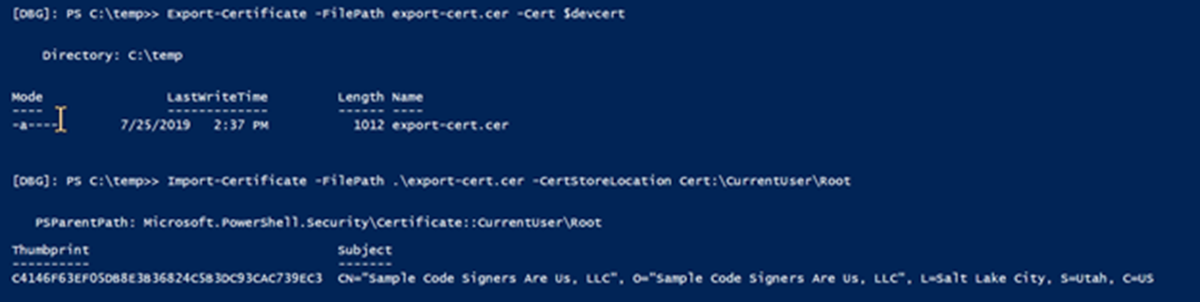
The warning does not prevent the script from being signed — signing still completes successfully. It only indicates that the file is signed by an untrusted CA.
What's next
You can now incorporate these PowerShell commands into your automated CI/CD pipelines or build scripts on Windows to sign your application files and scripts.