Integrating with SignTool
Overview
SignTool.exe is the standard Microsoft command-line tool for applying Authenticode digital signatures to Windows files such as executables (.exe), libraries (.dll), and installers (.msi).
The Code Sign Client integrates with SignTool by making your signing certificates available in the native Windows Certificate Store, where SignTool automatically finds them.
This guide walks you through the process of signing a file and shows you how to handle the common scenario where multiple certificates are available.
Before you begin
Before proceeding, ensure you have the following:
- SignTool.exe installed — It is included as part of the Windows SDK.
- The Code Sign Client — installed and running on a Windows machine.
- A file to sign — some file (for example,
myfile.exe) that you want to sign.
How do I get started?
The process involves running the signtool.exe sign command. However, if you have access to more than one code signing certificate, you must explicitly tell SignTool which one to use.
- Try to sign the file — run the basic signing command.
- Select a specific certificate — if the first command fails because multiple certificates are found, re-run the command with a flag to specify your desired certificate.
Step 1: Try to sign the file
To sign a file, use the command below. By default, SignTool tries to find and use a single valid code signing certificate in your Windows Certificate Store.
signtool.exe sign c:\temp\myfile.exe
If you only have one certificate, this command succeeds. However, if you have multiple, it fails with an error.
Step 2: Select a specific certificate
If you have access to more than one certificate, SignTool stops and prompts you to be more specific. The output looks similar to this:
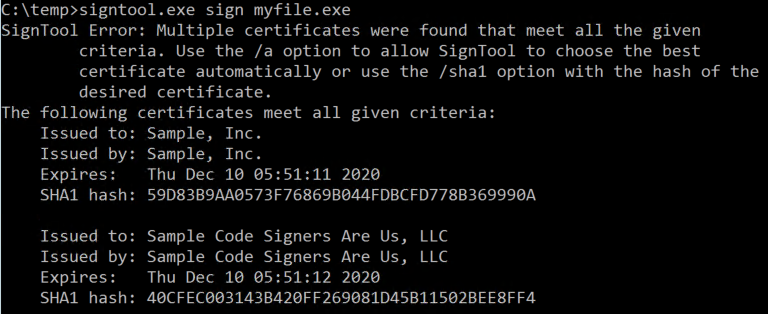
To resolve this, re-run the command and specify which certificate to use with the certificate's subject name (/n).
signtool.exe sign /n "Sample, Inc" c:\temp\myfile.exe
In this example, we select the certificate where the "Issued To" field is "Sample, Inc".
A successful command produces the following output:
C:\temp>signtool.exe sign /n "Sample, Inc" myfile.exe
Done Adding Additional Store
Successfully signed: myfile.exe